The Ultimate Guide to BMS Programming for Leaf ZE0 Owners
Are you struggling to get your Nissan Leaf ZE0 battery back online after a replacement or upgrade?
If you own a Nissan Leaf ZE0 (2011-2015 model) and are facing the dreaded “Turtle Light” or a completely unresponsive dashboard after swapping your battery, you are not alone. The ZE0 model is notoriously known in the EV community for its complex Battery Management System (BMS). Unlike newer models where the battery is often a simple “plug-and-play” component, the ZE0 requires precise communication between the vehicle’s Body Control Module (BCM) and the new battery’s BMS.
At CNS BATTERY, we specialize in OEM-compatible powertrain solutions for Nissan and BMW. We understand that for ZE0 owners, the biggest hurdle isn’t just finding a reliable battery, but ensuring it speaks the same language as your car. This guide is designed to demystify the programming process, explain why using brand-new cells matters for compatibility, and show you how to get your Leaf back on the road safely.
Why is BMS Programming Critical for the Leaf ZE0?
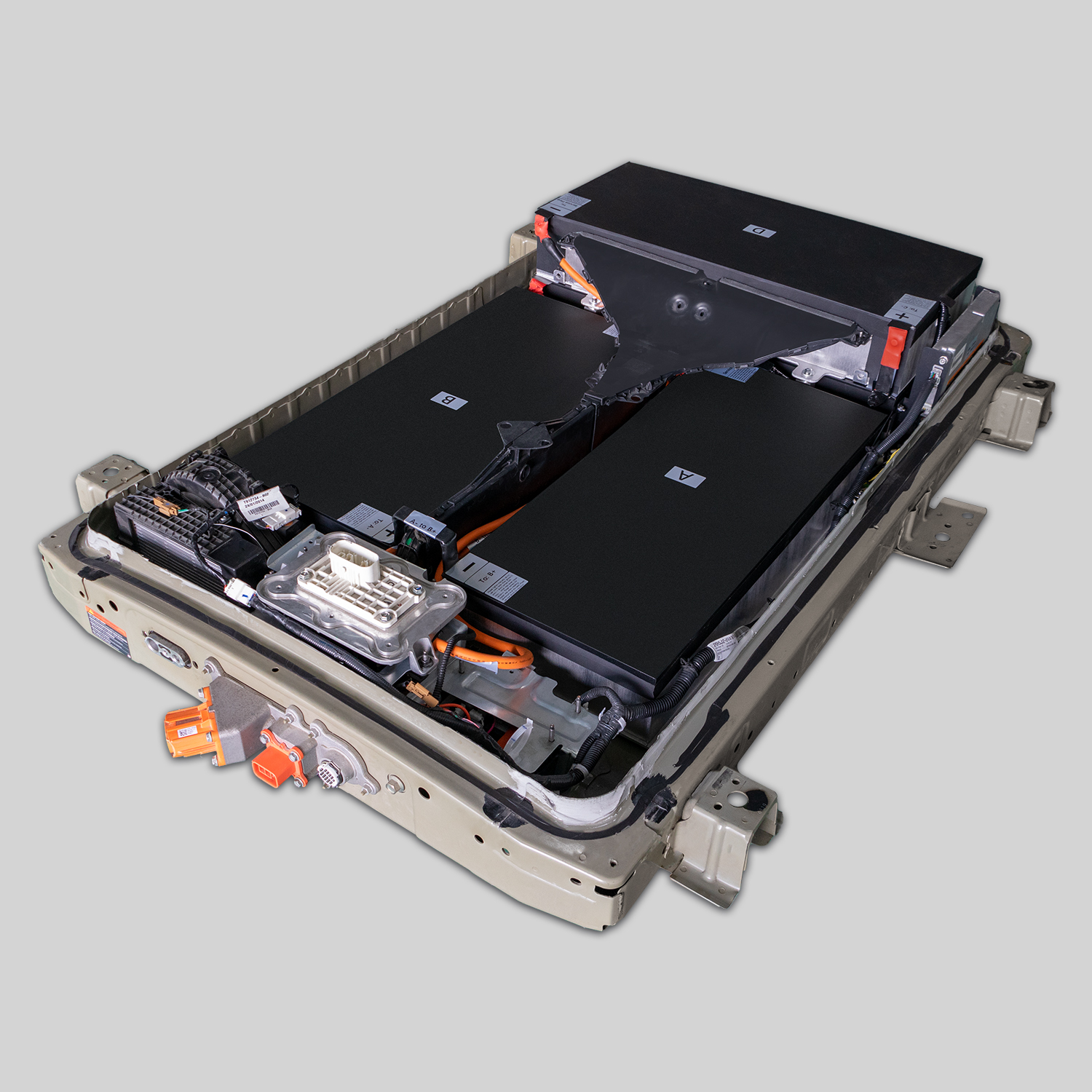
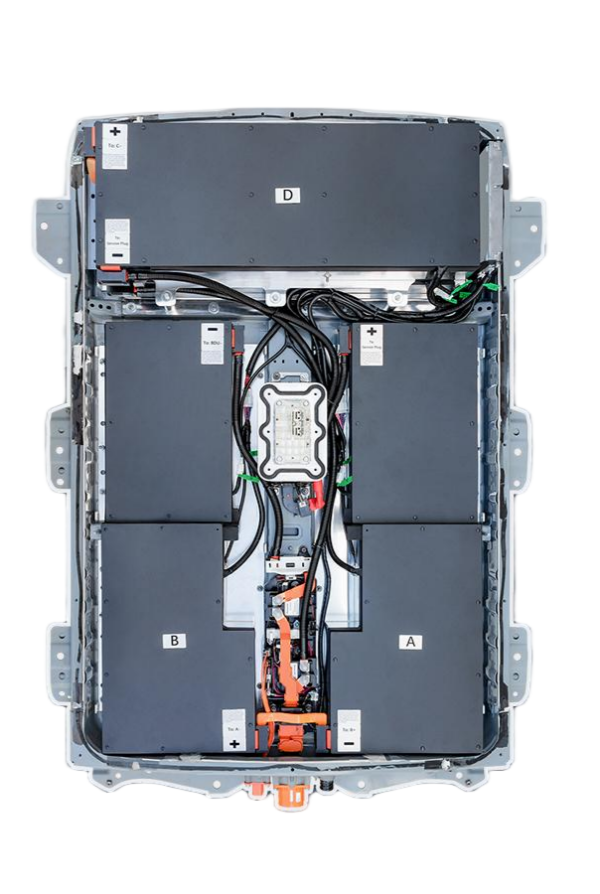
The Nissan Leaf ZE0 relies on a sophisticated handshake protocol. When you install a new battery pack, the car’s computer doesn’t automatically trust it. The BMS acts as the brain of the battery, monitoring voltage, temperature, and state of charge.
For the ZE0, simply bolting in a new pack is rarely enough. If the BMS isn’t programmed correctly:
- The car will not allow the high-voltage system to engage.
- You may see error codes or the battery gauge may remain stuck at zero.
- In the worst case, mismatched programming can lead to safety cut-offs or damage.
Key Insight: A high-quality aftermarket battery, like those engineered by CNS, comes with the necessary hardware (CAN bus interface) and software protocols pre-installed to mimic the original factory settings, but it still requires a “key” (programming) to unlock its function.
The Hardware & Software Requirements
Before you start the programming process, you need to ensure you have the right tools. Using inferior tools or software is the primary reason for failed installations.
1. The Right Hardware Interface
To bridge your laptop and the Leaf, you need a compatible OBD2 adapter. The industry standard is the VXDIAG VCX Nano with the Nissan Consult 3 software. While there are cheaper clones available, we strongly recommend using genuine or high-grade professional hardware. Cheap adapters often lack the stability required for the lengthy ZE0 programming procedure, leading to connection drops that can brick the module.
2. The Correct Software
You will need Nissan Consult 3 (or Consult 4) installed on a compatible Windows laptop. This is the same software used by Nissan dealerships. Ensure your laptop meets the system requirements and has a stable power supply (or a fully charged battery) to prevent interruptions during the 30-60 minute process.
Step-by-Step Programming Guide
While every workshop has its specific workflow, the general process for programming a CNS BMS for a Leaf ZE0 follows these stages. Please note: This requires a high level of technical competence. If you are not comfortable with high-voltage systems, consult a professional technician.
Step 1: Physical Installation & Pre-Check
Install the new CNS battery pack ensuring all high-voltage and low-voltage connectors are securely fastened. Before starting the car or connecting the programming tool, verify that the 12V auxiliary battery is fully charged and that the physical connections to the BMS (the small signal connector) are tight.
Step 2: Establishing Connection
- Connect the VXDIAG VCX Nano to your laptop via USB.
- Plug the OBD2 end into the vehicle’s diagnostic port.
- Turn the ignition to “On” (do not start the car).
- Open the Consult 3 software and verify that the tool recognizes the vehicle’s ECU.
Step 3: Initiating the BMS Rewrite
Navigate through the Consult 3 menu:
- Select “Body”.
- Select “Battery”.
- Select “Battery Management System”.
Here, you will typically see an option to “Write ECU Data” or “Initialize BMS.” This is where the vehicle learns the new battery’s parameters.
Step 4: The Waiting Game
Once you confirm the write command, the process begins. The screen will display a progress bar. This is the most critical phase.
- DO NOT turn off the ignition.
- DO NOT disconnect the tool.
- DO NOT let your laptop sleep.
The process can take anywhere from 30 minutes to an hour. The system is erasing the old module’s memory and writing a new calibration file that matches your specific Leaf’s VIN and the new CNS battery’s configuration.
Step 5: Verification
Once complete, the software will prompt you. Turn the car off and on again. The battery bars should now populate correctly, and the “Turtle Light” should disappear. Take the car for a short test drive to confirm regenerative braking and charging functions are operational.
Why Choose a CNS Battery for Your ZE0 Upgrade?
At CNS BATTERY, we don’t just sell battery packs; we provide engineered solutions. For the Leaf ZE0, our packs are designed specifically to overcome the programming hurdles that plague other replacements.
1. Brand-New CATL Cells for Maximum Compatibility
Many “budget” replacements on the market use recycled or refurbished cells. These often have degraded BMS chips that are incompatible with the ZE0’s handshake protocol. CNS batteries utilize brand-new, premium-grade CATL lithium cells. This ensures the BMS hardware is fresh, robust, and capable of handling the Consult 3 programming without errors.
2. OEM-Level Engineering
Our R&D team reverse-engineers the Nissan OEM standards to ensure our signal connectors and CAN bus protocols match the factory specifications exactly. This means the Consult 3 software recognizes our battery as a “genuine” replacement, significantly increasing the success rate of the programming process.
3. Lifetime Technical Support
We know programming can be nerve-wracking. That is why every CNS battery purchase comes with access to our expert technical support team. If you hit a snag during the BMS initialization, our engineers are available for remote video guidance to walk you through the diagnostics.
Frequently Asked Questions (FAQ)
Q1: Is BMS programming necessary for all Nissan Leaf models?
A: No. The requirement is primarily for the ZE0 (2011-2015) models due to their specific security protocols. Later models like the ZE1 (2018-2023) and AZE0 (Leaf Plus) are generally designed for “Plug and Play” installation, where the car automatically recognizes the new battery without requiring a laptop reflash.
Q2: Can I use a “Plug and Play” battery in my ZE0?
A: Generally, no. Standard plug-and-play batteries designed for ZE1/AZE0 models lack the specific internal circuitry required to communicate with the ZE0’s BCM. Attempting to install one will likely result in the car not starting. You specifically need a battery pack and BMS designed for the ZE0 protocol.
Q3: What happens if the programming fails?
A: A failed programming attempt usually results in the BMS entering a “bricked” or locked state. This does not necessarily mean the battery cells are dead, but the management board will need to be repaired or replaced. This is why using high-quality hardware (like CNS batteries) and professional tools is crucial to avoid costly mistakes.
Q4: How much does professional BMS programming cost?
A: If you are not DIY-inclined, hiring a professional EV technician typically costs between $200 and $500, depending on your location. However, many of our customers successfully perform the programming themselves using our free video tutorials and support guides.
Ready to upgrade your Nissan Leaf ZE0 with a reliable, compatible battery?
Don’t let the complexity of BMS programming deter you from extending the life of your EV. With the right tools and the right battery, you can save thousands compared to dealership prices.
Contact our technical experts today for a free consultation and personalized programming support.